Showing posts with label EQ8 tips and tricks. Show all posts

Wednesday, March 25, 2020

EQ8 ++ Tips & Tricks ++ Moving the Fabric Preview


I have a quick EQ8 tip for you today on how to move the fabric preview window out of the sketchbook area.

Especially when you are on a smaller screen such as lap top screen, the sketchbook area on the left hand side of the screen is limited.  The fabric preview window takes up a good portion of this valuable real estate.

Simply click the button that looks like an arrow pointing to a bracket (in the bottom right hand corner of the preview fabric).


This detaches the fabric preview window and allows it to be placed anywhere on the screen giving more area for the other elements in the sketchbook.


If you ever want to return the fabric preview window to the sketchbook, simply click the X in the upper right hand corner of the fabric preview window.

I hope this quick tip helps!!


The Electric Quilt Company is generously offering a special coupon code for my readers.  Use can use EQ8CHERYL for 20% off of their entire website, ElectricQuilt.com (EQ8, EQ8 upgrades, books, add-ons, etc.). The code is good until March 31, 2020.


Wednesday, March 11, 2020

EQ8 ++ Importing Fabric Series ++ Post 5


We are now in the 5th and final post in this series about how you can import fabrics into EQ8.  Here are links to all of the posts

Adding Fabrics into EQ8 for Future Use


EQ8 gives us many standard colors and fabrics as our default when we start a new project in EQ8.  These are a great starting point for most projects, but if you want additional fabrics not in EQ8, you have to load them into your sketchbook for each project...unless you add them to "My Library".  Then your fabrics will be waiting in the library and you can easily add them to each new project.

Step 1 - Open the Fabric Library

Open the fabric library (where you go to add additional fabrics into your sketchbook).


Step 2 - Create a Favorite Library under My Favorite Fabrics

On the left hand side of the window, select "My Favorite Fabrics".  "My Libraries" will appear in the lower left hand area of the window.  Click the "Create Library" button to create a new library and then name the new library.  Good suggestions for names would be fabric collection names, fabric colors, etc.


Step 3 - Editing the Library and Styles

The new library will default to 10 styles.  This can be edited by right clicking on the library name.


You can change the name of the styles by right clicking or using two single clicks on the style name.


Step 5 - Adding Fabric to your Favorite Library

Using the "Import" button, import your desired fabric images from your hard-drive (Importing fabrics from your hard drive is shown in more detail in a previous post).


Select the fabrics within the window and press copy (or use Control-C for PC or Command-C for Mac).  Go back to your new library and style and paste the fabrics.  Click the "Save Library" button to save the library.

Congrats!  From this series you now know how to import different fabric images from a variety of sources, do basic scaling and editing, and how to add them to your favorites library to easily access them in each project.

I hope you have found this series helpful!!


The Electric Quilt Company is generously offering a special coupon code for my readers.  Use can use EQ8CHERYL for 20% off of their entire website, ElectricQuilt.com (EQ8, EQ8 upgrades, books, add-ons, etc.). The code is good until March 31, 2020.


Wednesday, March 4, 2020

EQ8 ++ Importing Fabric Series ++ Post 4


I hope that you are finding this series about importing fabrics into EQ8 helpful.  So far we can covered importing fabrics from Electric Quilt and from fabric manufacturers' websites.

Here are the posts that will be in the Importing Fabrics into EQ8 blog series, that will be posted each Wednesday:

Resizing and Cropping Fabrics in EQ8


Sometimes you have a fabric image that is not scaled correctly in EQ8.  For example, a flower that measures 5" in real life on a fabric may show up as measuring only 1-2" in EQ8.  Today, I will be taking you through the very quick steps to fix the scale of your image so that it renders correctly in your EQ8 quilt top.

Step 1 - Open the Image Worktable

The Image Worktable is the green worktable button all the way on the right hand side of the screen (circled in red).  One way to know that you are in the Image Worktable is that the ribbon header is green.


Step 2 - Open the Image

Under the Image - Edit tabs, click the Import Image button (circled in red).  Navigate to where the image is stored on your computer and select the image you want to scale. The fabric should be &' wide but in EQ8 it is showing almost 10" in width.


Step 3 - Scale the Image

Click the Scale Fabric button and type in the actual fabric width in inches.  For this example, I am using a Ruby Star for Moda print that has a ruler so I can easily see that the fabric should be 7" wide.  If your fabric does not have a ruler, you can manually measure the width using the actual fabric and a ruler.


Step 4 - Crop Image if Necessary

If you image has a ruler (or other markings) you would like to delete.  Select the crop button (circled in red) to crop out the unwanted elements.


Step 5 - Add as a Fabric

Once you are satisfied with the fabric image being scaled correctly, you can press the Add a Fabric button (circled in red).  This will add the image as a fabric and it will show up with the other fabrics in your Block and Quilt Worktables.


I hope that this helps solve the problem of fabric images not scaling correctly in EQ8.  Next week we will learn how to add fabrics to your favorites library so that they are easily available in every project.


The Electric Quilt Company is generously offering a special coupon code for my readers.  Use can use EQ8CHERYL for 20% off of their entire website, ElectricQuilt.com (EQ8, EQ8 upgrades, books, add-ons, etc.). The code is good until March 31, 2020.


Wednesday, February 26, 2020

EQ8 ++ Importing Fabric Series ++ Post 3


I hope that you are finding this series about importing fabrics into EQ8 helpful.  So far we can covered importing fabrics from Electric Quilt and from fabric manufacturers' websites. 

Here are the posts that will be in the Importing Fabrics into EQ8 blog series, that will be posted each Wednesday:

Importing Fabric Swatches from Other Sources


If you purchased a fabric that is not available as a download as part of an EQ bundle or from a fabrioc manufacturer that has full collection downloads there are still other options to get the fabrics into EQ8.

Using these techniques, the biggest downside will be that the images are typically not scaled correctly for EQ8, meaning that a design from the fabric will appear larger or smaller in the rendered quilt top in EQ8.

For example, a flower that measures 5" in real life on a fabric may show up as measuring only 1-2" in EQ8.  In Post 4 of this series, we will learn how to quickly crop and resize fabric images to fix this issue.

The most important thing to remember when downloading individual files is to remember where you saved them on the computer and to make sure you keep them organized.


Individual Images

You can download individual images off the web from where you purchased the fabric (Ebay, Etsy, etc) by right clicking on the image and saving it to your hard drive. 

Be sure that these images are for your own personal use, I would not post these images or the quilts rendered using them on the internet, patterns, etc. due to copyright laws.


Scanned Images

If you have a flat bed scanner, you can scan your fabric directly.


Digital Photographs 

You can take a picture of your fabric and then download the image onto your hard drive.  This is the least preferred method because slight lighting differences across the fabric become very visible when the fabric image is tiled in a quilt top rendering.


How to Add Downloaded Fabrics into your EQ8 Fabric Library

1.  Open your fabric library.  At the bottom of the window click the Import Fabrics → From Image Files.  Navigate to where on the hard drive the images are stored, select the images you wish to add, and press Open.  This sometimes takes a few minutes due to the size of the files.


2.  Select the images in the window (there is a Select All Fabrics button) and then click Add to Sketchbook.  You will have to add the fabrics to each new project you start.  Post 5 in this series will cover adding fabrics to your library so they are available for every project.


Next Wednesday, in part 4, we will learn how to resize and scale our fabric images.


The Electric Quilt Company is generously offering a special coupon code for my readers.  Use can use EQ8CHERYL for 20% off of their entire website, ElectricQuilt.com (EQ8, EQ8 upgrades, books, add-ons, etc.). The code is good until March 31, 2020.


Wednesday, February 19, 2020

EQ8 ++ Importing Fabric Series ++ Post 2


In the first post of this series, we learned how to download fabric swatches from www.ElectricQuilt.com to add to our EQ8 fabric library.  In post 2 today, we are going to explore how to download swatches of full fabric collections from manufactures' websites.

Just a reminder, here are the posts that will be in the Importing Fabrics into EQ8 blog series, that will be posted each Wednesday:
  • Post 1 - Importing fabrics from Electric Quilt into EQ8 
  • Post 2 - Importing fabrics from fabric manufacturer sites into EQ8 ← this post
  • Post 3 - Importing fabrics from other sources into EQ8
  • Post 4 - Resizing and cropping fabrics in EQ8 to correct fabric print scale
  • Post 5 - Adding fabrics to "My Library" for future use

Importing Fabric Swatches from Fabric Manufacturer Websites


More and more fabric manufacturers are making it easy to download fabric images of entire collections so that quilters can play with the fabrics in their new designs.  Below are the four manufacturers that I know currently offer swatch downloads.

The biggest downside to these images from the manufacturers is that they are typically not scaled correctly for EQ8, meaning that a design from the fabric will appear larger or smaller in the rendered quilt top in EQ8. 

For example, a flower that measures 5" in real life on a fabric may show up as measuring only 1-2" in EQ8.  In Post 4 of this series, we will learn how to quickly crop and resize fabric images to fix this issue.


Moda Fabrics

Go to the www.ModaFabrics.com and under "Inspiration + Resources" click "Fabric Downloads".  You can search the available collections by name, designer, etc and Moda has collections available form a few years back to collections that have not launched yet. 


Art Gallery Fabrics

Go to the http://www.artgalleryfabrics.com/ website and navigate to the fabric collection you are interested in.  There will be a button to download jpeg swatches.


Andover Fabrics

Go to https://andoverfabrics.com/ and navigate to the collection you are interested in.  There will be a tab at the top of the page called "Quilts and Downloads".  In that tab there will be a button to download the images.


Northcott

Go to http://www.northcott.net/ and navigate to the collection you are interested in.  For most collections, there is a gray "Download Fabric Files" button on the right hand of the screen.


Saving Your Files

Most of the fabric collection images will be downloaded as .zip files due to their size.  Unzip the files and save them into a folder on your computer.  I have a folder named "Fabrics" and within this folder have sub-folders for each collection to keep them organized and easy to find.


How to Add Downloaded Fabrics into your EQ8 Fabric Library

1.  Open your fabric library.  At the bottom of the window click the Import Fabrics → From Image Files.  Navigate to where on the hard drive the images are stored, select the images you wish to add, and press Open.  This sometimes takes a few minutes due to the size of the files.


2.  Select the images in the window (there is a Select All Fabrics button) and then click Add to Sketchbook.  You will have to add the fabrics to each new project you start.  Post 5 in this series will cover adding fabrics to your library so they are available for every project.


If you know of additional manufacturers offering downloads, please let me know in the comments below.  Next Wednesday, in part 3, we will learn how to download fabric swatches when full collection downloads are not available.


The Electric Quilt Company is generously offering a special coupon code for my readers.  Use can use EQ8CHERYL for 20% off of their entire website, ElectricQuilt.com (EQ8, EQ8 upgrades, books, add-ons, etc.). The code is good until March 31, 2020.


Wednesday, February 12, 2020

EQ8 ++ Importing Fabric Series ++ Post 1

I am so happy to hear that quilter's are enjoying my EQ8 tips and tricks posts.  I asked for suggestions on what you wanted to learn and I heard from multiple quilters that they would like to know more about how to import fabrics into EQ8.


The topic is a bit too much for a single post so I will be posting a series on importing fabrics into EQ8.  The blog series will post every Wednesday and will include the following topics:

  • Post 1 - Importing fabrics from Electric Quilt into EQ8 ← this post
  • Post 2 - Importing fabrics from fabric manufacturer sites into EQ8
  • Post 3 - Importing fabrics from other sources into EQ8
  • Post 4 - Resizing and cropping fabrics in EQ8 to correct fabric print scale
  • Post 5 - Adding fabrics to "My Library" for future use

Today we will be handling the first topic:


Importing fabrics from Electric Quilt into EQ8

Importing fabric swatches directly from Electric Quilt is the easiest and best way (in my opinion) of getting correctly scaled, fabric images with good color representation.

Electric Quilt offers a free monthly set of fabric swatches to download (previous months are also available) and large EQ Stash bundles for purchase.

To find and install the free monthly fabric sets:

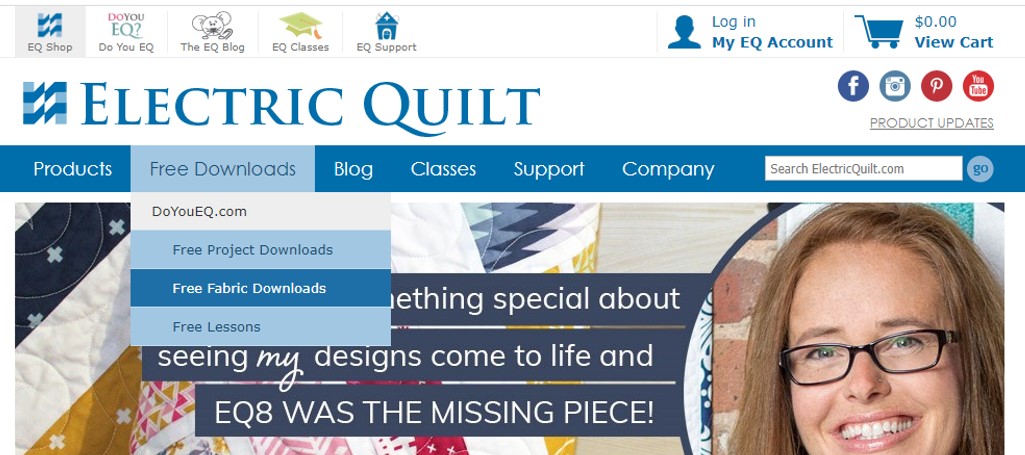
1. In your internet browser, go to www.ElectricQuilt.com.  Under the Electric Quilt logo, select Free Downloads and then Free Fabric Downloads.


2. This brings up the Do You EQ? page with the free fabrics of the month.  The current month is at the top and previous month's sets are below.  Click the download button and select PC or MAC.


3.  On a PC, once the .exe is finished downloading, you can begin the installation of the fabrics.  Clicking the .exe will launch a window similar to installation windows for other applications.


4.  Once the fabric of the month file is installed it will automatically show up in your Fabric Library so these fabrics will be available for every project in EQ8, there is no need to reload them for each project.  This is a great advantage compared to importing fabric swatches from the sources.  Additionally, the fabric on the swatches are scaled correctly so the designs will show up as the correct size in your quilt.

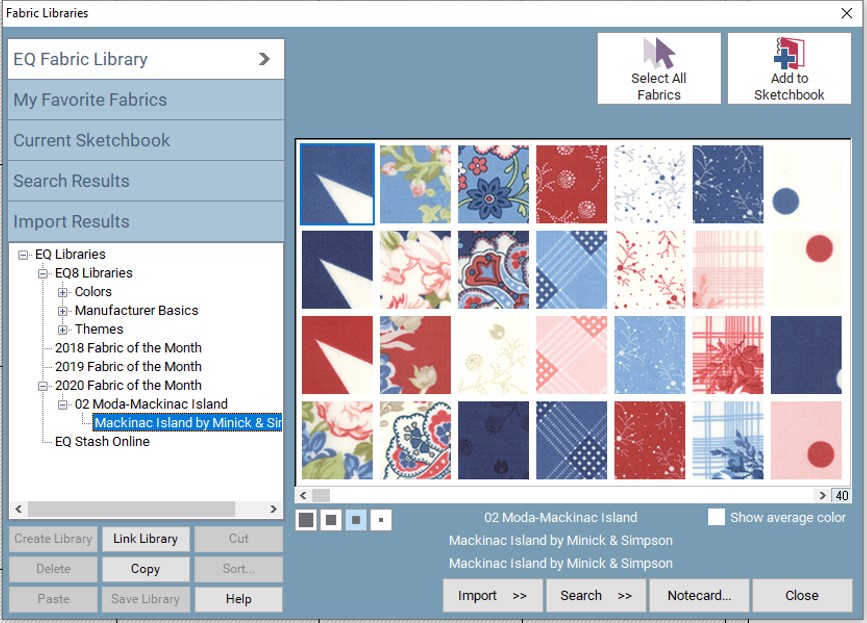
You can find the February fabrics:  EQ Libraries → 2020 Fabric of Month → 02 Moda-Mackinac Island → Mackinac Island by Minick & Simpson


To find and install the EQ Stash fabric bundles:

1.  In the middle of the the main www.ElectricQuilt.com page, there is a button to shop for EQ8 Add-ons.


2.  This will bring up different EQ Stash downloads organized by year.  Each bundle is $7.95 (but you can use EQ8CHERYL for 20% off through March 31, 2020) for 1,100+ fabric swatches in each bundle.


I hope you try downloading a free monthly fabric set and EQ Stash bundle from Electric Quilt!  For the next blog post, I will be showing you some different places fabric swatches can be downloaded and how they can be used.


The Electric Quilt Company is generously offering a special coupon code for my readers.  Use can use EQ8CHERYL for 20% off of their entire website, ElectricQuilt.com (EQ8, EQ8 upgrades, books, add-ons, etc.). The code is good until March 31, 2020.


Wednesday, January 29, 2020

EQ8 ++ Turning Seam Lines On/Off

Ready for another EQ8 tip?  Did you know that you can easily turn the seam lines on and off in the quilt top in EQ8?  Showing the seam lines is great to see how the quilt top is put together and hiding the seam lines gives you a better idea on how the actual quilt would look pieced with fabric.


There are two ways of turning the seam lines on and off.

Method 1

While your mouse is on the quilt top in the Quilt Workshop, right click.  This brings up a menu where you can turn the seam lines on and off for the blocks and pieces.


 Quilt top with all seam lines


Quilt top with seam lines only around the blocks


Quilt top with no seam lines


Method 2

On the right hand side of the screen right over the question mark button is a Hid/Show Quilt Patch Lines button.  Clicking this button will turn on and off all seam lines.


I hope that you have found this tutorial to be helpful!  Happy designing!!


The Electric Quilt Company is generously offering a special coupon code for my readers.  Use can use EQ8CHERYL for 20% off of their entire website, ElectricQuilt.com (EQ8, EQ8 upgrades, books, add-ons, etc.). The code is good until March 31, 2020.



Wednesday, January 15, 2020

January EQ8 Block Spotlight & Giveaway!

Did you know that each month Electric Quilt highlights a block from the EQ8 Block Library? They share a few ideas on how you could use the block in a unique way in a quilt top then asks EQ users to play and show what they can do with the block.


This month's block is the Pinwheel Square and you can find it on EQ's blog here. You can link up your design and see everyone else's on the blog page too.

I decided to play with the Pinwheel Square this month and came up with three different looking quilt tops.

1. Vertical Layout

I used the vertical layout to have regular and half drop blocks and then colored parts of the block the same color as the dark background to give a vertical zigzag look between the columns of blocks.


2. Combined with Duck and Ducklings

For the second design, I combined the Pinwheel Square block with the Duck and Ducklings block. I colored parts of both blocks white like the background to simplify the quilt top a little.


3. Combined with Irish Chain

For the last design I combined with Pinwheel Square block with a simple Irish Chain block I drew in EQ8. I colored the blocks to look a little like flowers.


Which is your favorite design? Have you ever played with and submitted a design in the EQ8 Block Spotlight?


GIVEAWAY ALERT

Do you want to win a copy of EQ8? I am giving away a copy over on Instagram right now! You can find the link here. (Note: this giveaway is only on Instagram, a comment on this post will not be counted as an entry.)


The Electric Quilt Company is generously offering a special coupon code for my readers.  Use can use EQ8CHERYL for 20% off of their entire website, ElectricQuilt.com (EQ8, EQ8 upgrades, books, add-ons, etc.). The code is good until March 31, 2020.